Fix TM SIM No Signal Instantly 2026 | Complete Guide
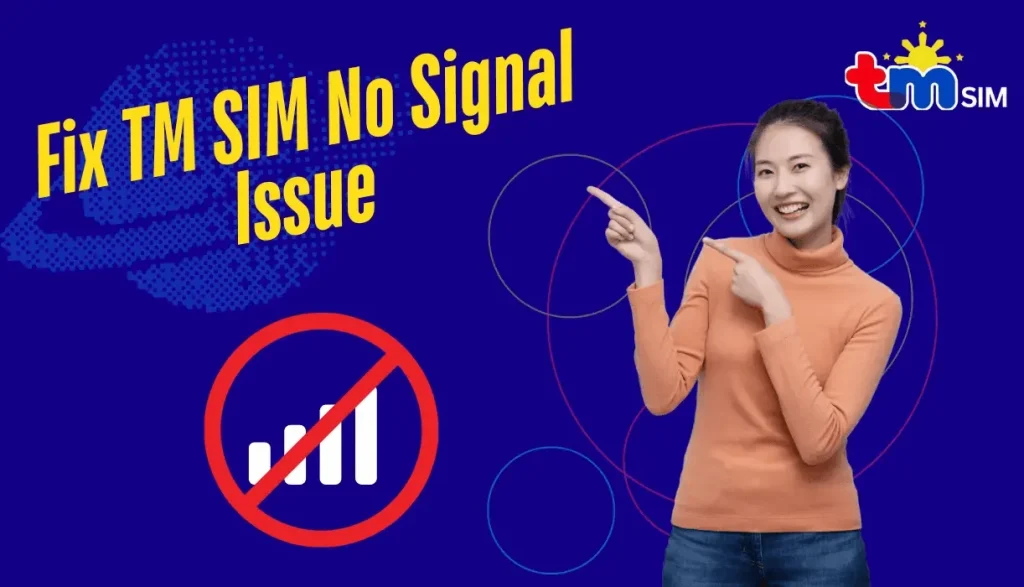
Are you experiencing “No Signal” or “Emergency Calls Only” on your TM SIM? You’re not alone. Many TM users in the Philippines face this problem TM SIM No Signal due to weak coverage, SIM errors, or phone settings. And if you haven’t registered your TM SIM yet, make sure to complete your TM SIM Registration now to avoid signal issues and service interruptions.
In this 2026 updated guide, you’ll learn quick and effective ways to fix your TM SIM no signal issue instantly without needing to visit a store (unless necessary).

Common Reasons Why TM SIM No Signal
Before addressing the issue, it’s crucial to understand the reasons behind it. Below are the most common reasons:
Once you identify the cause, you can apply the right solution below and if you’re also looking to maximize your TM services, don’t forget to check out our TM Promo guide for the best and latest offers.
How to Fix TM SIM No Signal Instantly
Check TM Network Coverage
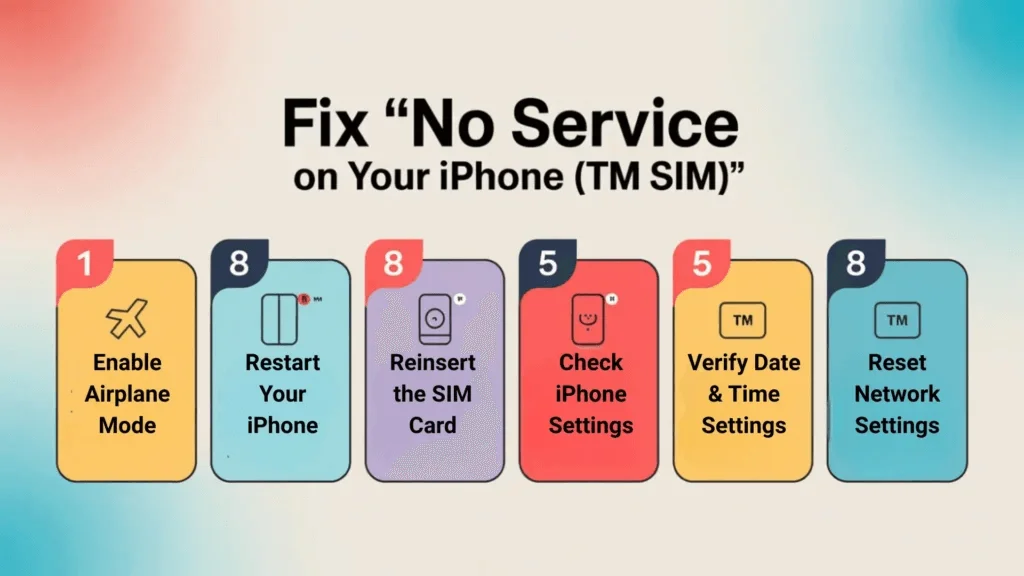
Restart Your Phone
Occasionally, restarting your phone can resolve temporary signal problems.
This resets your network connection to the nearest cell tower, and if you’re considering switching to a digital SIM, you can also check our guide on how to convert your physical TM SIM to TM eSIM.
Reinsert Your SIM Card
Power off your phone and gently take out the TM SIM card.
If you’re using a dual-SIM phone, try inserting the SIM into the other slot to see if the problem is with the slot itself.
Enable and Disable Airplane Mode
Toggle your phone’s Airplane Mode ON for about 10 seconds, then turn it OFF. This helps your phone reconnect to the TM network and can quickly resolve signal drop issues.
Check for SIM or Phone Damage
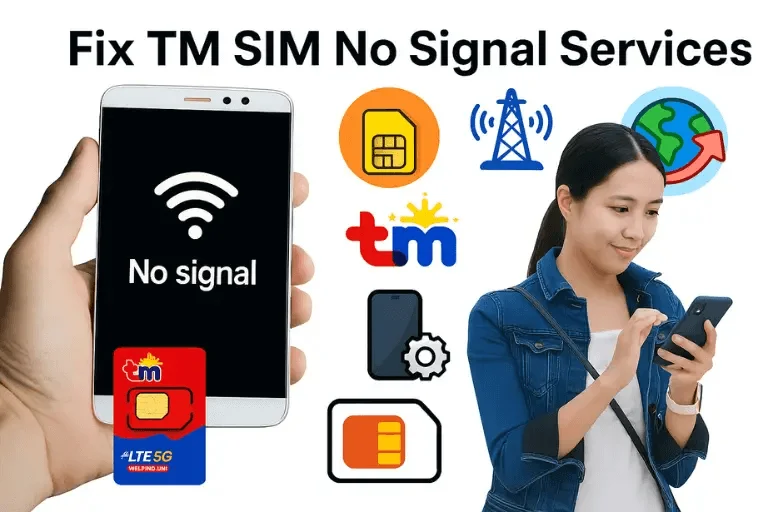
Inspect your SIM card for scratches or cracks. If your SIM card is damaged, you’ll have to get it replaced. Visit the nearest Globe/TM Store and ask for a SIM replacement with the same number (it’s usually free or ₱50–₱100). After replacement, make sure your SIM is properly registered by following our guide on How to Register TM SIM.
Update Your Network Settings (APN Reset)
For Android
- Open Settings → Connections → Mobile Networks → Access Point Names on your phone.
- Tap Reset to Default or manually add TM’s APN:
- Name: TM
- APN: internet.globe.com.ph
- MCC: 515
- MNC: 02
For iPhone
- Go to Settings → Cellular → Cellular Data Network.
- Add or edit the APN field to internet globe.
Restart your phone afterwards.
Check for Software Updates
Outdated phone software can sometimes cause SIM detection issues.
- Go to Settings → Software Update.
- Download and install the latest version.
After updating, restart your device and check your signal.
Make Sure Your TM SIM Is Registered
Unregistered SIMs may lose network access. Text SIMREG to 8080 to confirm your registration status. If unregistered, visit https://simregistertm.ph/ to complete your TM SIM Registration online.
Reset Network Settings (Last Resort)
If everything else fails, reset your phone’s network settings.
For Android:
Settings → General Management → Reset → Reset Network Settings.
For iPhone:
Settings → General → Transfer or Reset iPhone → Reset → Reset Network Settings.
This will delete saved WiFi passwords but fix any misconfigured mobile network setup.
When to Visit a TM Store
If none of the above fixes work, your SIM might have expired, been damaged, or disconnected.
Visit the nearest Globe/TM Service Center and bring:
- One valid ID
- Your affected SIM
They’ll check your SIM status and issue a replacement if needed. For further assistance or SIM-related concerns, you can contact TM Customer Service for official support.
Tips to Prevent TM Signal Problems
Conclusion
Experiencing no signal on your TM SIM can be annoying, but most problems can be resolved quickly by following the correct steps. Start with simple fixes like restarting your phone or reinserting your SIM and if nothing works, visit your nearest TM Store for a quick SIM replacement.
Keep your SIM active and your phone updated, and you’ll enjoy strong, reliable TM coverage all year round.